
# Gantt Chart Pro Get Started Guide
Welcome to Gantt Chart Pro, the interactive project timeline for Microsoft Teams. This guide walks you through adding the app to a channel, configuring the tab, and building your first plan so your team can schedule and track work without leaving Teams.
# What is Gantt Chart Pro?
Gantt Chart Pro gives your team one shared space inside Microsoft Teams to plan tasks, set dependencies, track progress, and mark milestones on a visual timeline. You create tasks and subtasks, assign participants, color-code work, and export a snapshot when you need to report or archive it.
You add Gantt Chart Pro as a tab in any team channel, so the plan lives right next to the conversations it supports.
# Add Gantt Chart Pro to Microsoft Teams
- 1
Open Microsoft Teams and click Apps in the left sidebar.
- 2
Search for Gantt Chart Pro, then click Add to a team.
- 3
In Type a team or channel name, search for and select the target team or channel.
- 4
Click Set up a tab, then click Save.
You can also add it from inside a channel. Click + Add a tab at the top, then search for Gantt Chart Pro.
# Configure the tab settings
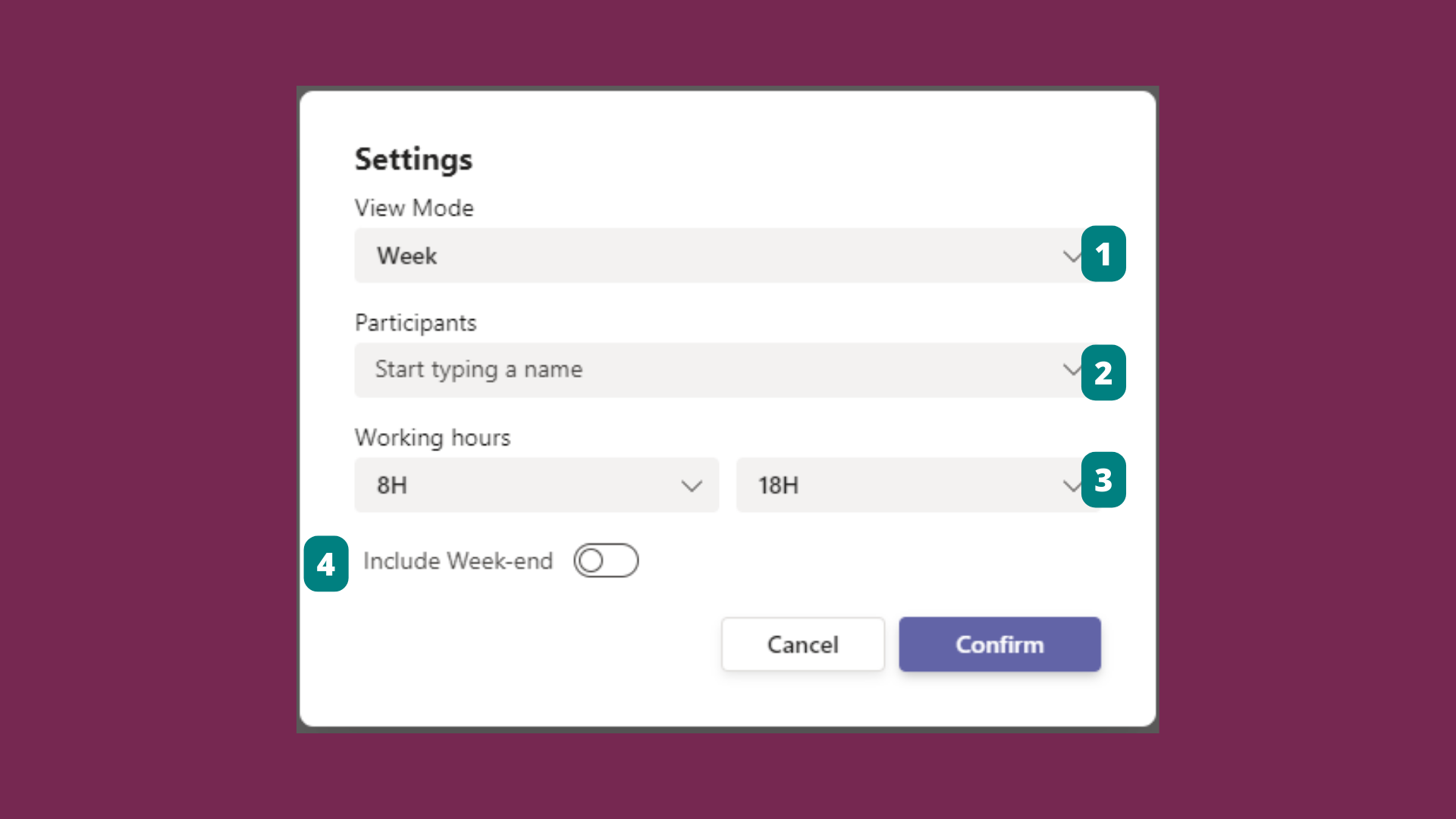
Open Settings to tailor the timeline to your project. The dialog groups the options in order: View mode (1), Participants (2), Working hours (3), and Include weekend (4).
- 1
Open the Gantt Chart Pro tab, then click Settings.
- 2
Set the View mode (Hour, Day, Week, Month, or Year) to match the length of your project.
- 3
Add Participants, the team members you assign to tasks.
- 4
Define your Working hours.
- 5
Turn Include weekend on or off, then click Validate to save your settings.
# Key features
# Choose your plan
Gantt Chart Pro comes in a Free plan for smaller projects and a Premium plan that lifts the size limits and adds visuals and reporting.
Free
Everything a small team needs to plan a project.
- Interactive Gantt timeline in Microsoft Teams
- Up to 5 tasks, each with 1 subtask
- Up to 3 participants per task
- Dependencies, progress, and notes
- Column sorting
- Clone, notifications, and tab settings
Premium
Scale, visuals, and reporting for larger projects.
- Everything in Free
- Unlimited tasks, subtasks, and participants
- Task colors and milestones
- Filtering
- Export to CSV, Excel, and PDF
# Common questions
# How do I find the Tab ID (unique identifier)?
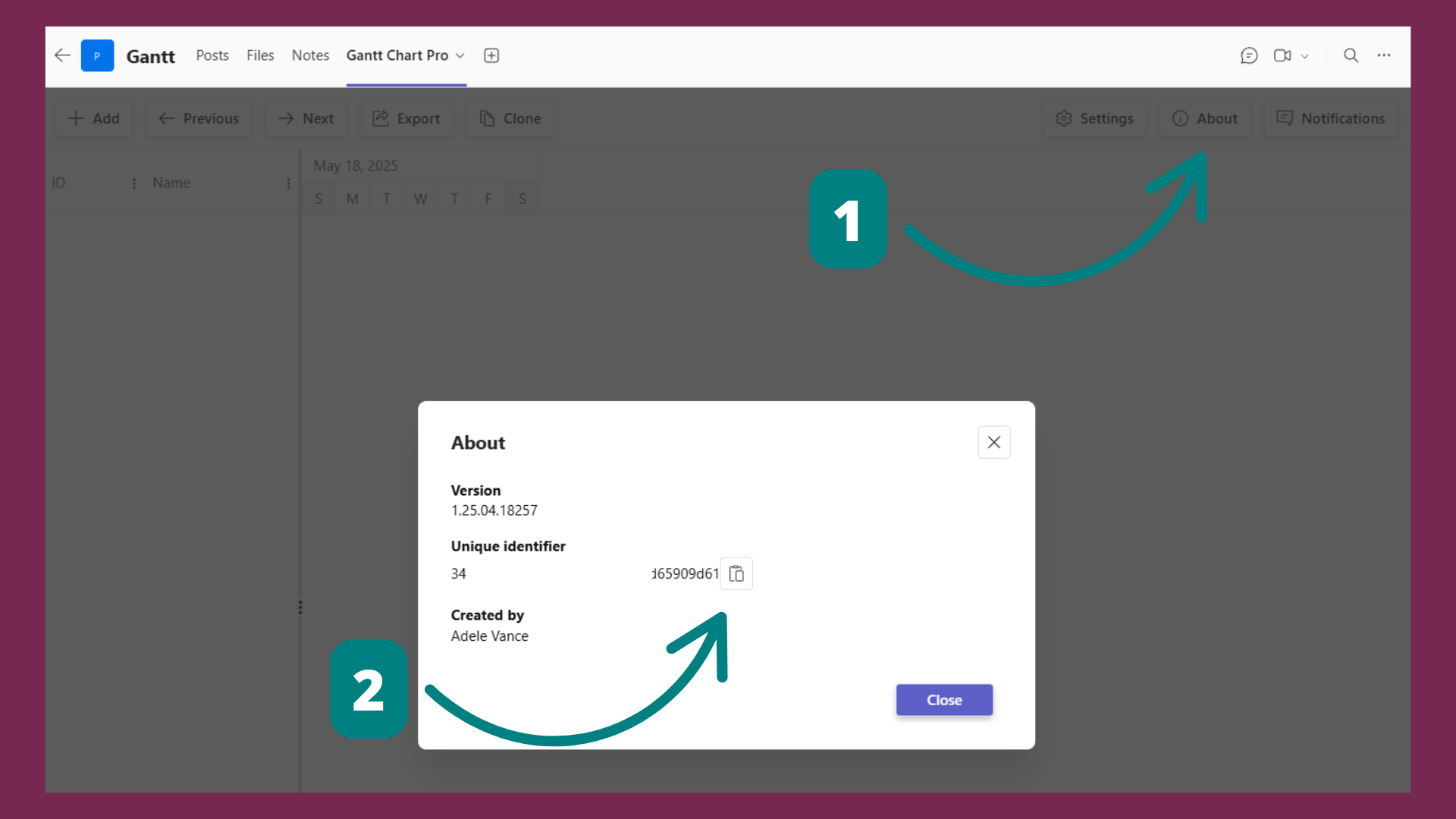
Click the About button (ℹ️) in the top-right corner of the Gantt Chart Pro tab. A dialog opens showing the version, the unique identifier, and who created the tab. Click the copy icon next to the identifier to copy it. This identifier is useful for support or license management.
# Who can edit the plan?
You control edit access from the tab permissions: allow everyone to edit, or restrict editing to owners only. Everyone in the channel can still view the timeline.
# Related pages
- Build your plan in tasks and subtasks.
- Sequence work with dependencies and mark key dates with milestones.
- Group and focus your timeline with colors, filters, and sorting.
- Share your plan through export and reporting.
- Still have questions? Browse the Gantt Chart Pro Q&A.
← Overview What it is →