# Edit a reminder in Reminds Pro
Plans change, so Reminds Pro lets you update a reminder after you create it. Editing reuses the same form you used to schedule the reminder, so you can correct a typo in the title, move the date or time, switch the time zone, adjust the participants who get notified, or toggle the priority. Any change you save applies to the notification the next time the reminder fires, and everyone in a shared channel or chat sees the updated details.
# Edit a reminder
- 1
In the reminder list, find the reminder you want to change.
- 2
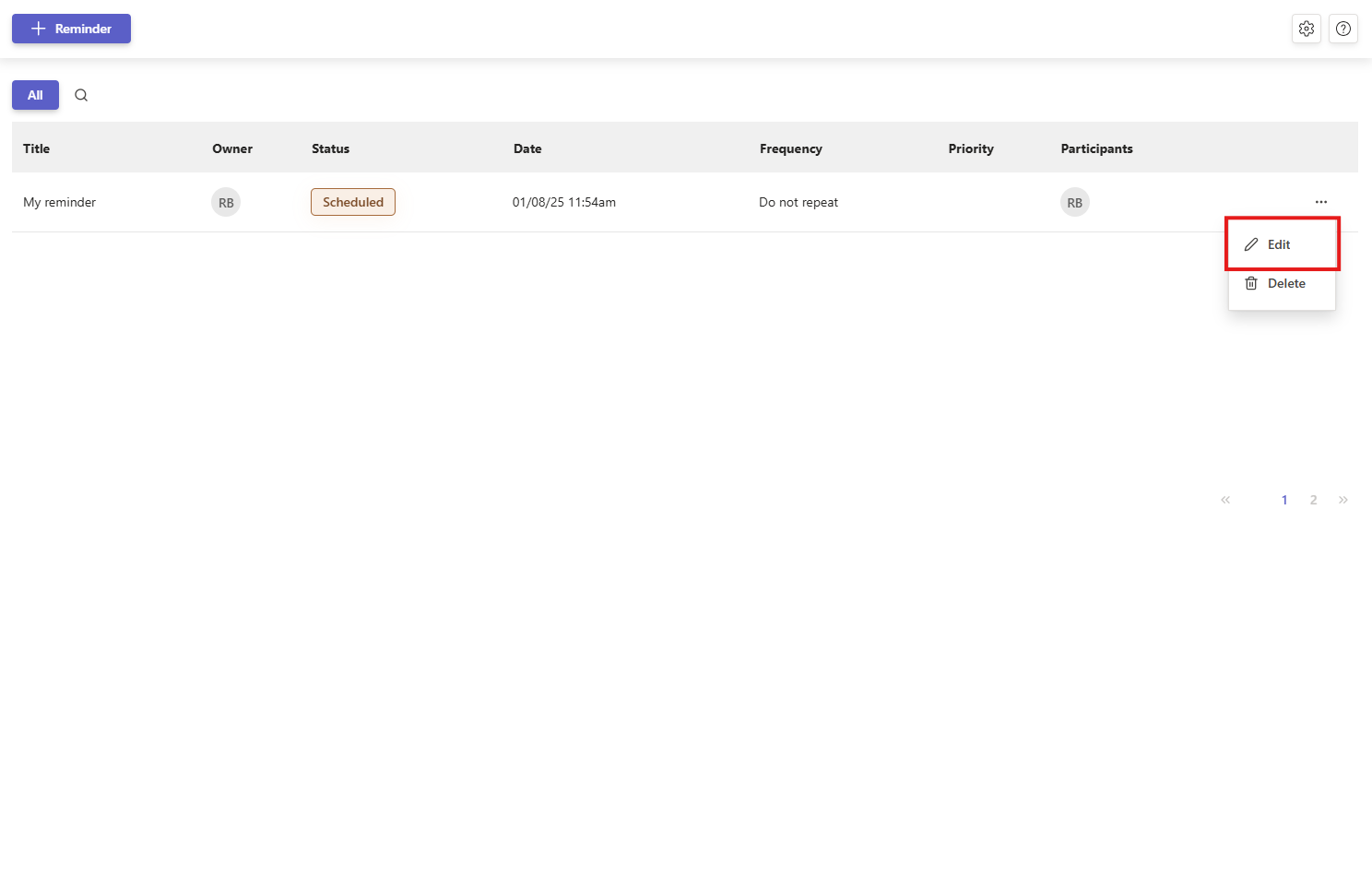
Click the three dots menu on that reminder, then choose Edit.
- 3
Update any field you need: Title, Description, Date, Time, Time zone, Frequency, participants, or Priority.
- 4
Click Save. The updated reminder keeps its place in the list and the new details apply to the next notification.