# Add a new reminder in Reminds Pro
A reminder in Reminds Pro is a scheduled notification that Microsoft Teams delivers to you or your teammates at a date and time you choose. Each reminder carries a title, an optional description, a due date and time, a time zone, and a list of participants. When the reminder fires, Reminds Pro posts it to the Teams activity feed of every participant so nothing important slips through. Use a new reminder to keep a team on track for deadlines, recurring check-ins, or one-time follow-ups.
# Create a reminder
- 1
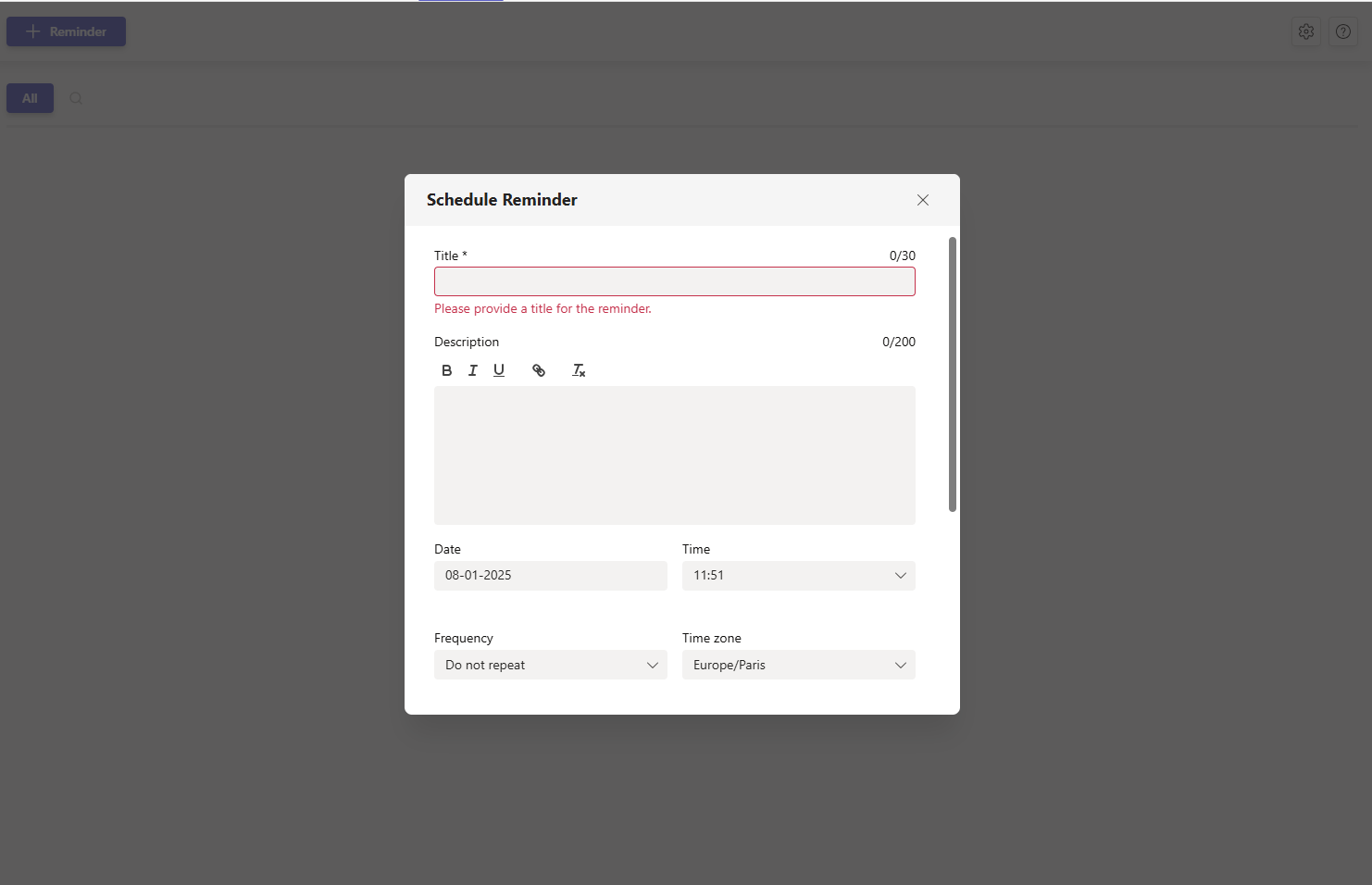
Open Reminds Pro from your Microsoft Teams sidebar or a shared tab, then click Add to open the Schedule Reminder form.
- 2
Enter a Title. This field is required and names the reminder in the list.
- 3
Add an optional Description using the text formatting tools to give the reminder more context.
- 4
Set the Date and Time the reminder should fire.
- Choose the correct Time zone so the notification arrives at the right moment for everyone.
- Set a Frequency if you want the reminder to repeat. Pick an End date to stop the recurrence.
The reminder time cannot be in the past, and the reminder date cannot be after the end date.
- 5
Under Notify these participants, add the people who should receive the reminder.
At least one participant is required to send a notification. A personal reminder notifies only you.
- 6
Turn Priority to Yes to flag the reminder as important.
- 7
Click Schedule. The reminder appears in the list with a Scheduled status.