
# Edit a trip in Map Pro
You can update any trip you have added to Map Pro when a route, destination, or travel type changes. Editing a trip keeps your shared team map accurate without deleting and recreating the route, so the map stays current for everyone in the Microsoft Teams channel.
# Edit a trip
- 1
Open the Trips tab in Map Pro.
- 2
Find the trip you want to change in the list.
- 3
Click the edit (pencil) icon next to the trip.
- 4
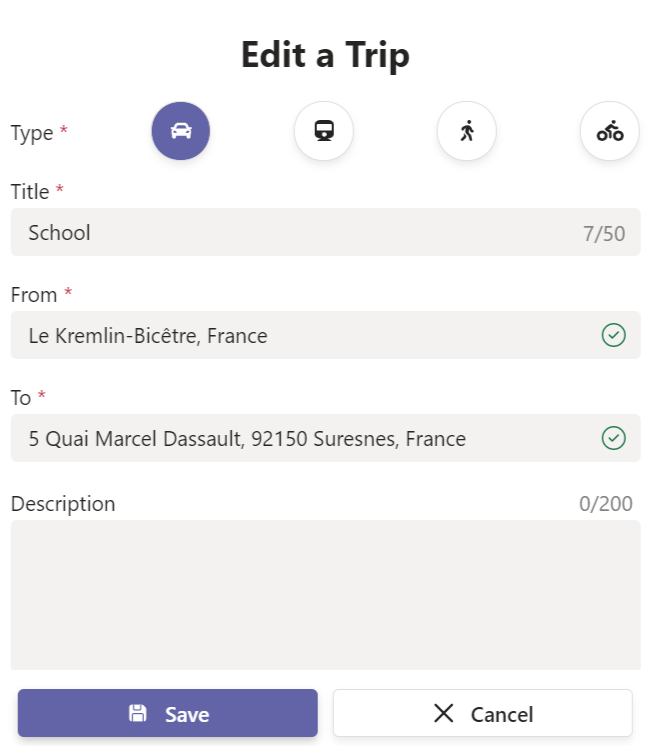
Update the Type, Title, From, To, or Description as needed.
- 5
Click Save to apply your changes.
If you close the trip without saving, Map Pro shows an Unsaved changes prompt so you can discard your edits or continue editing.
Change the Type to redraw the route. Switching between Car, Train, Foot, and Bicycle updates how the path is shown on the map.
# Related pages
- Create a new route in how to add trips to Map Pro.
- Remove a route in how to delete the trips added.
- Locate a route in where to find the trips added.
- Edit a pinned location in how to edit the place added.