
# Add a trip to Map Pro
A trip in Map Pro plots a route between two addresses on your shared team map, so everyone in the Microsoft Teams channel can see where a journey starts and ends and how it is traveled. Use trips to visualize delivery runs, field visits, commutes, or any point-to-point route your team needs to track.
# Add a trip
- 1
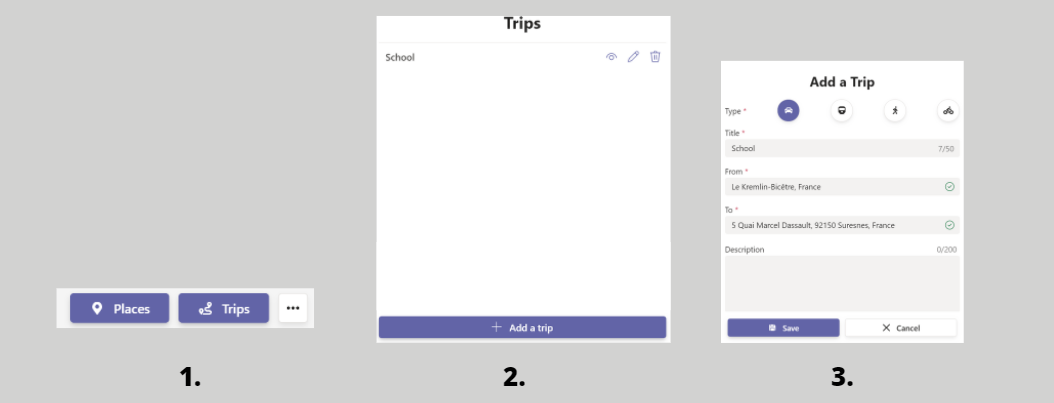
Open the Map Pro tab in Microsoft Teams.
- 2
Click the Trips icon at the top right.
- 3
Click Add a trip.
- 4
In Type, choose the travel mode: Car, Train, Foot, or Bicycle.
- 5
Enter a Title for the trip (up to 50 characters).
- 6
Set the From and To addresses. Map Pro validates each address as you type.
If you see Invalid address, refine the address until Map Pro recognizes it.
- 7
Optionally add a Description (up to 200 characters).
- 8
Click Save. The trip appears on the map with its route drawn between the two points.
# Related pages
- See your saved routes in where to find the trips added.
- Change a route in how to edit the trips added.
- Pin single locations in how to add places to Map Pro.
- Show Calendar Pro or Contacts Pro data in connect TeamsPro apps with Map Pro.