
# Delete a place in Map Pro
Removing a place takes its pin off your shared Map Pro map in Microsoft Teams. Delete a place when a location closes, a site is no longer relevant, or you added it by mistake. Map Pro asks you to confirm before it removes the pin, so an accidental click will not delete anything on its own.
# Delete a place
- 1
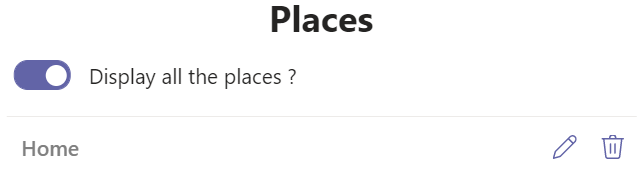
Open your Map Pro tab, then click the Places icon at the top right to open the Places panel.
- 2
Find the place in the list and click its delete icon.
- 3
When Map Pro asks whether you want to delete this place, click Delete to confirm.
The pin is removed from the map for everyone who can open the tab.
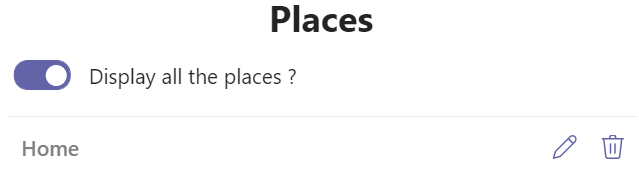
Deleting a place is permanent and removes the pin for everyone who can open the tab. To keep the location but hide it, use the display toggle instead of deleting it.