
# Add a new contact in Contacts Pro
Contacts Pro gives your team one shared address book inside Microsoft Teams. Adding a contact makes that person available to everyone who can see the tab, so the whole team works from the same up-to-date details. Use this task whenever you want to record a new customer, partner, or colleague.
# Add a contact
- 1
Open the Contacts Pro tab in Microsoft Teams.
- 2
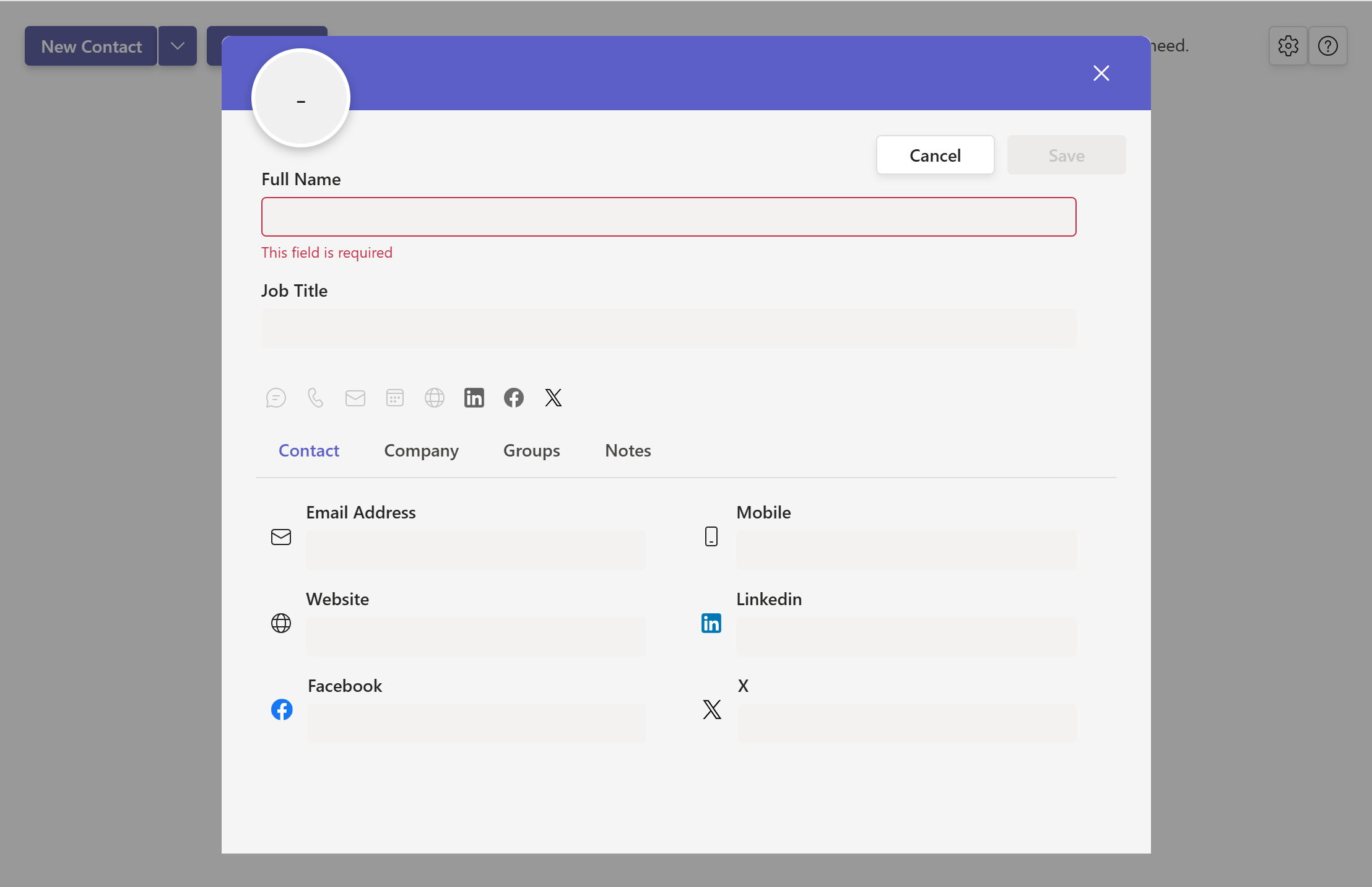
Click New Contact in the top toolbar. A form opens.
- 3
Enter the contact Full Name, then add any details you have across the General, Internet, and Phones sections (job title, company, department, email, website, phone numbers, addresses, and notes).
- 4
Click Save to add the contact to the shared book.
To set a profile picture, upload a landscape .jpeg or .png image under 5 MB. Anything larger or in the wrong format is rejected.
How many contacts a shared book holds depends on the plan: 100 on Free, 1,000 on Premium, and unlimited on Platinum, which also adds advanced permissions, the Power Automate connector, and API access. See Contacts Pro limits for how caps apply when tiers share one book.
# Related pages
- Change a contact later with how to edit a contact.
- Organize people with how to assign a group to a contact.
- Create a group first in how can I add a new group.