
# Select the display mode in Contacts Pro
Contacts Pro can show your shared book in three layouts, so everyone can view contacts the way that suits them best. You can set a default view when you configure the tab and change it on the fly from the toolbar.
The three display modes are:
- Card: rich cards with photos and key details (the default view).
- List: a compact, row-based list that fits more people on screen.
- Group: contacts organized under the groups you created.
# Set the default during tab setup
- 1
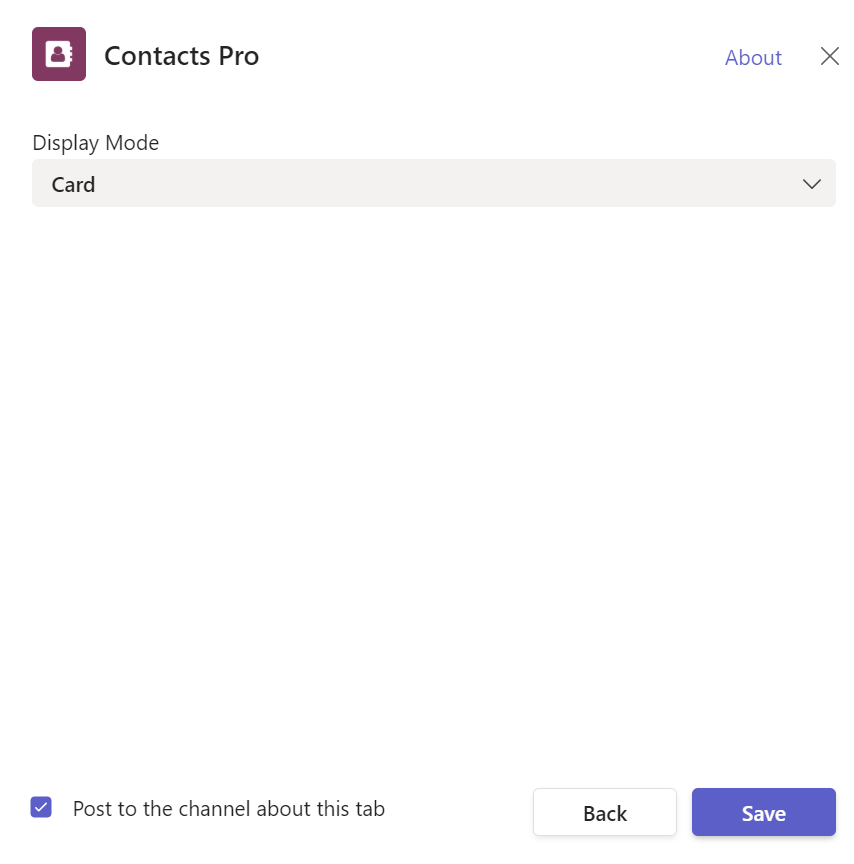
When you add or configure the Contacts Pro tab, find the Display Mode dropdown.
- 2
Choose Card, List, or Group.
- 3
Click Save to set it as the default view for the tab.
# Switch the view from the toolbar
- 1
Open the Contacts Pro tab.
- 2
Use the Card, List, or Group buttons at the top of the tab to switch the view at any time.
Group view is most useful once you have organized people into groups. Create groups first, then switch to Group view to browse them.
# Related pages
- Build groups to use in Group view with how can I add a new group.
- Find people quickly using how to search and filter contacts.
- New to the app? Start with how to install Contacts Pro.