
# Tasks and subtasks in Gantt Chart Pro
Tasks are the building blocks of a plan in Gantt Chart Pro for Microsoft Teams. Each task has a name, a start and end date, a progress percentage, and an optional set of participants and notes. Use subtasks to break a larger piece of work into smaller steps under a parent task, so ownership and progress stay clear as the plan grows.
# Add a task
- 1
Click Add in the toolbar to open the New task dialog.
- 2
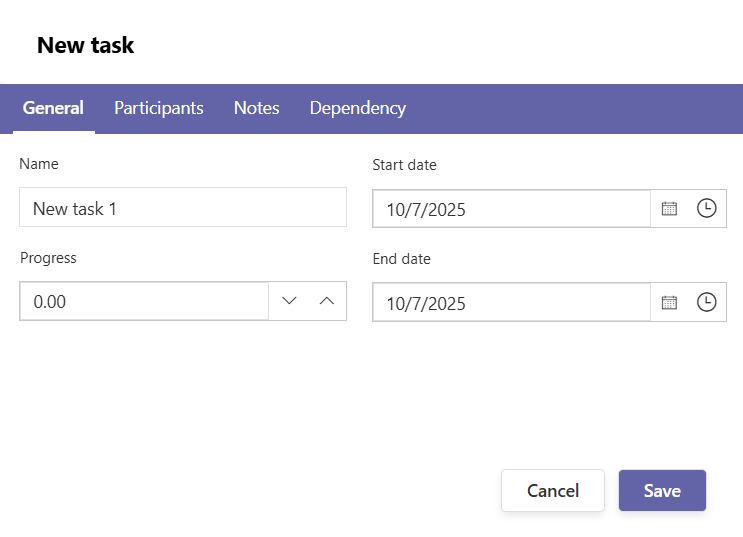
On the General tab, enter a Name, a Start date, and an End date, then set Progress to reflect how far along the work is.
- 3
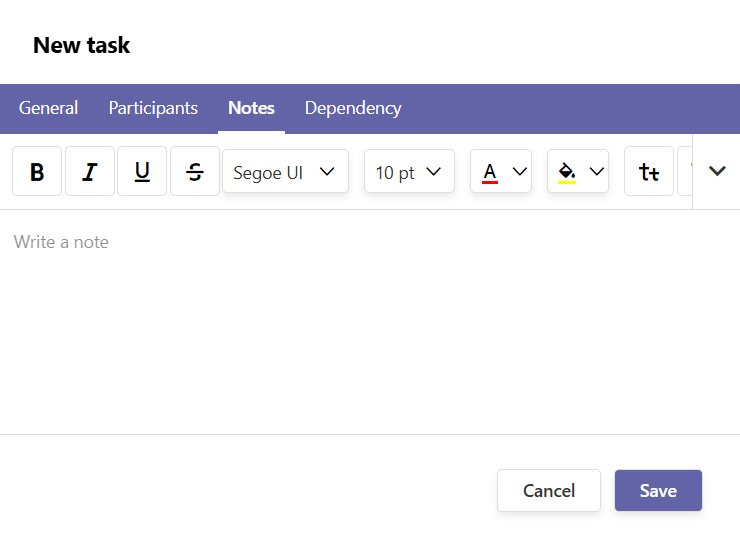
Use the Resources, Notes, and Dependency tabs to assign participants, add notes, and link the task to others.
- 4
Click Save. The task appears as a bar on the timeline.
Keep names short and move detail into Notes. The bar label shows the progress percentage, so a clear name plus progress makes status obvious at a glance.
# Add a subtask
- 1
Right-click the task that will be the parent, then choose Add to create a child task beneath it.
- 2
Fill in the Name, Start, End, and Progress, then click Save. The child task is nested under its parent.
# Adjust dates on the timeline
Reschedule work directly on the chart instead of reopening the task dialog.
- 1
Drag the middle of a task bar to move the whole task, keeping its duration.
- 2
Drag either end of the bar to change its Start or End date.

# Duplicate a task
Copy an existing task instead of rebuilding it from scratch, which is useful for recurring or similar pieces of work.
- 1
Select the task you want to copy by clicking its row in the chart.
- 2
In the toolbar, click Clone.
- 3
The dialog pre-fills the original name. Rename the copy if you want, then click Validate to create it, or Cancel to discard.
The copy keeps the original task's participants, dates, and progress. Set any dependencies on the new task again, because predecessor links are not carried over reliably.
# Task status (automatic)
The Status column is calculated from each task's progress, so there is no status to set by hand:
- 0% shows as To do.
- 1% to 99% shows as In progress.
- 100% shows as Done.
To move a task between statuses, update its Progress in the task dialog. The Status column updates automatically.
# Right-click menu
Right-click a task row to open its context menu, which gives quick access to:
- Task information to view or edit the task details.
- Delete task to remove the selected task.
- Add to create a task (a child task, that is, a subtask, under the row you clicked).
- Delete dependency to remove a predecessor link on the task.
# Common questions
# Can I track progress on each task?
Yes. Set Progress in the task dialog. The bar label and the Status column both reflect the value you enter.
# Can I rearrange dates quickly?
Yes. Drag a task bar on the timeline to shift its start and end, or drag one end to change a single date.
# Related pages
- Turn a task into a checkpoint with milestones.
- Sequence work with dependencies.
- Assign people with participants.
- Change the timeline scale in view and timeline.