
# Managing permissions in Contacts Pro
Permissions control who can add, edit, and delete contacts and groups in a shared Contacts Pro. Choose a single mode for the whole channel, or switch to custom permissions to grant rights member by member. This page shows how to set permissions and how per-member rights work.
# Who can change permissions
Only the owners of a contact list can change its permissions. An owner is the person who created the Contacts Pro, plus anyone an owner promotes with Make owner. This role belongs to the contact list: being an owner of the Teams team does not make you an owner of the contact list.
If you are a member, you can still open Permissions to see who has which rights. The page shows the message "Only owners can change permissions. You can see them here." and you cannot change anything. To get more rights, ask an owner.
When an owner adds someone with Add members, that person starts as a Member with the default rights of the list, which follow the selected mode. The owner can then adjust the rights of that person.
# Rights needed to add, edit, delete, and import
Each action on contacts and groups needs the matching right. Owners always have all three.
| To do this | You need |
|---|---|
| Add a contact or a group | Add |
| Edit a contact or a group | Modify |
| Delete a contact or a group | Delete |
| Import contacts from Excel | Add and Modify, because an import can also update contacts that already exist |
Without the right, the action is not available to you and Contacts Pro refuses it. Depending on the action, you see a message such as "You do not have the rights to add contacts or groups", "You do not have the rights to edit contacts or groups." or "You do not have the rights to delete contacts or groups." Ask an owner of the contact list to give you the right you need.
# Permission modes
Contacts Pro offers three permission modes. By default, everybody in the channel can manage contacts and groups.
# Set the permissions
- 1
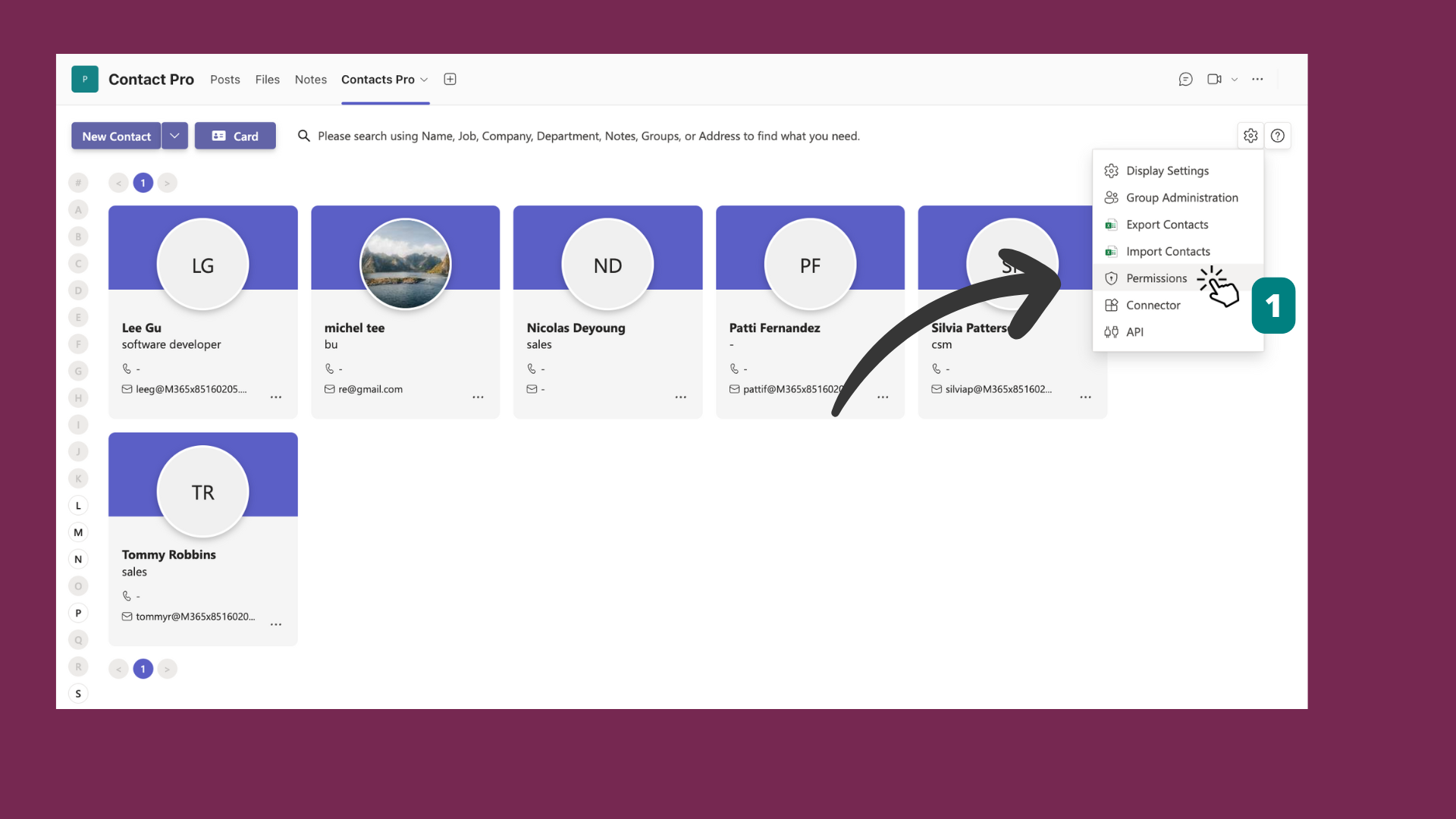
Click the Settings icon in the top-right corner of the contacts interface, then select Permissions.
- 2
Under Who can make changes, choose one mode: Everyone, Owners only, or Custom.
- 3
Click Save changes to apply your choice.
# Customize permissions per member
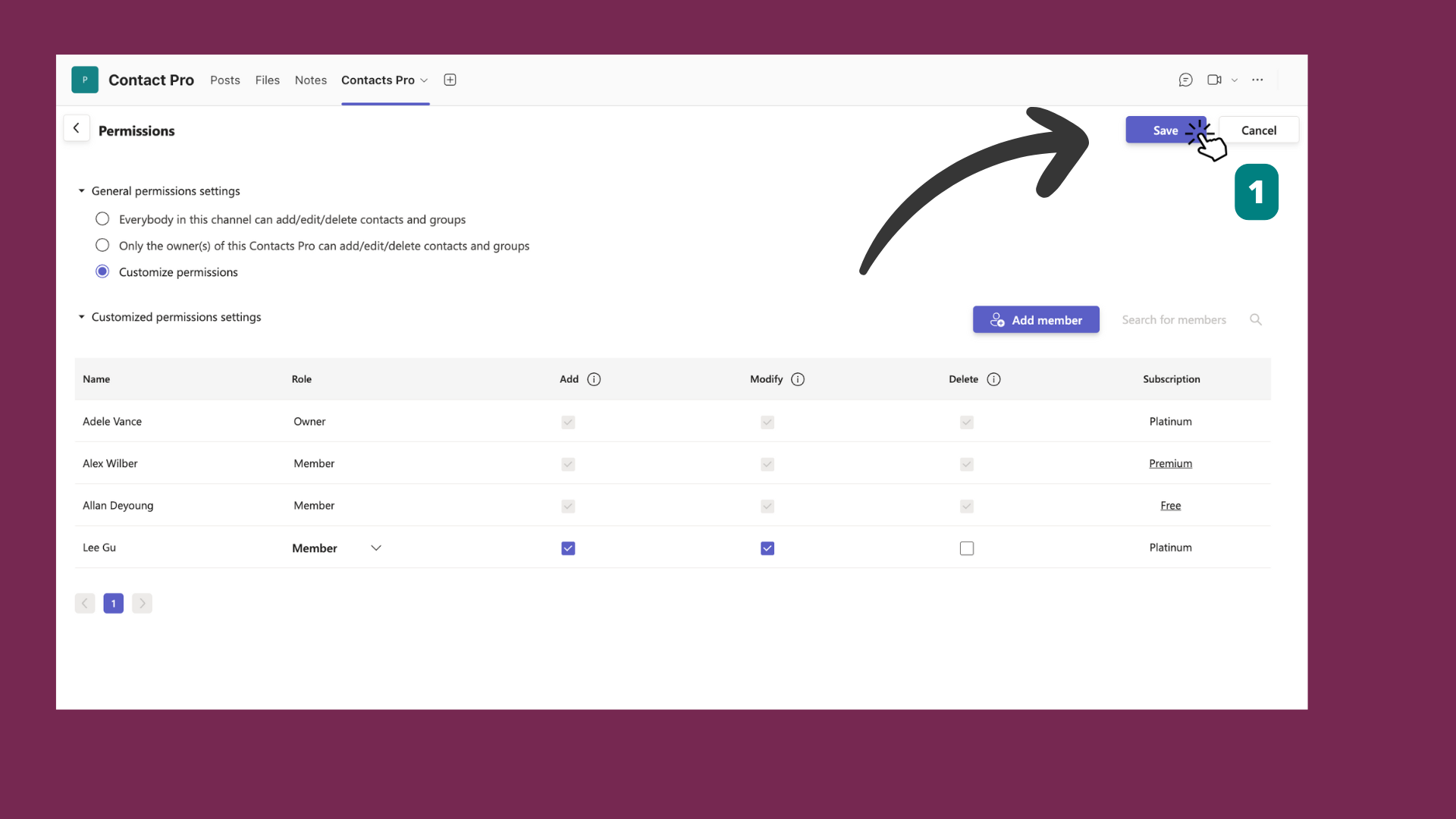
Custom permissions let you tune rights for each user. When you select Custom, you set rights member by member in the members table.
- 1
Under Who can make changes, select Custom.
- 2
Click Add members and pick each person you want to configure. Use Search for members to find someone already in the list.
- 3
For each member, set the rights with the checkboxes: Add to add contacts and groups, Modify to change them, and Delete to remove them. The Subscription column shows the license of each member, such as Platinum.
- 4
Click Save changes to apply the changes.
# Good practices
- Review regularly: Check permissions often so they match current team roles and responsibilities.
- Limit access: Restrict rights to the people who need them to keep control of your contacts.
- Clear roles: Define roles and share them with your team to avoid confusion.
# Related pages
- New to the app? Start by adding your first contact.
- See how rights and limits differ by plan in mixed tier usage in Contacts Pro.
- Automate contact management with Power Automate and Contacts Pro.