
# How to import contacts into Contacts Pro
Importing your contacts into Contacts Pro is straightforward. You fill in a supplied Excel template, upload it, and Contacts Pro emails you when the import is done. Follow these steps to upload your contacts from an Excel file.
# Import your contacts
- 1
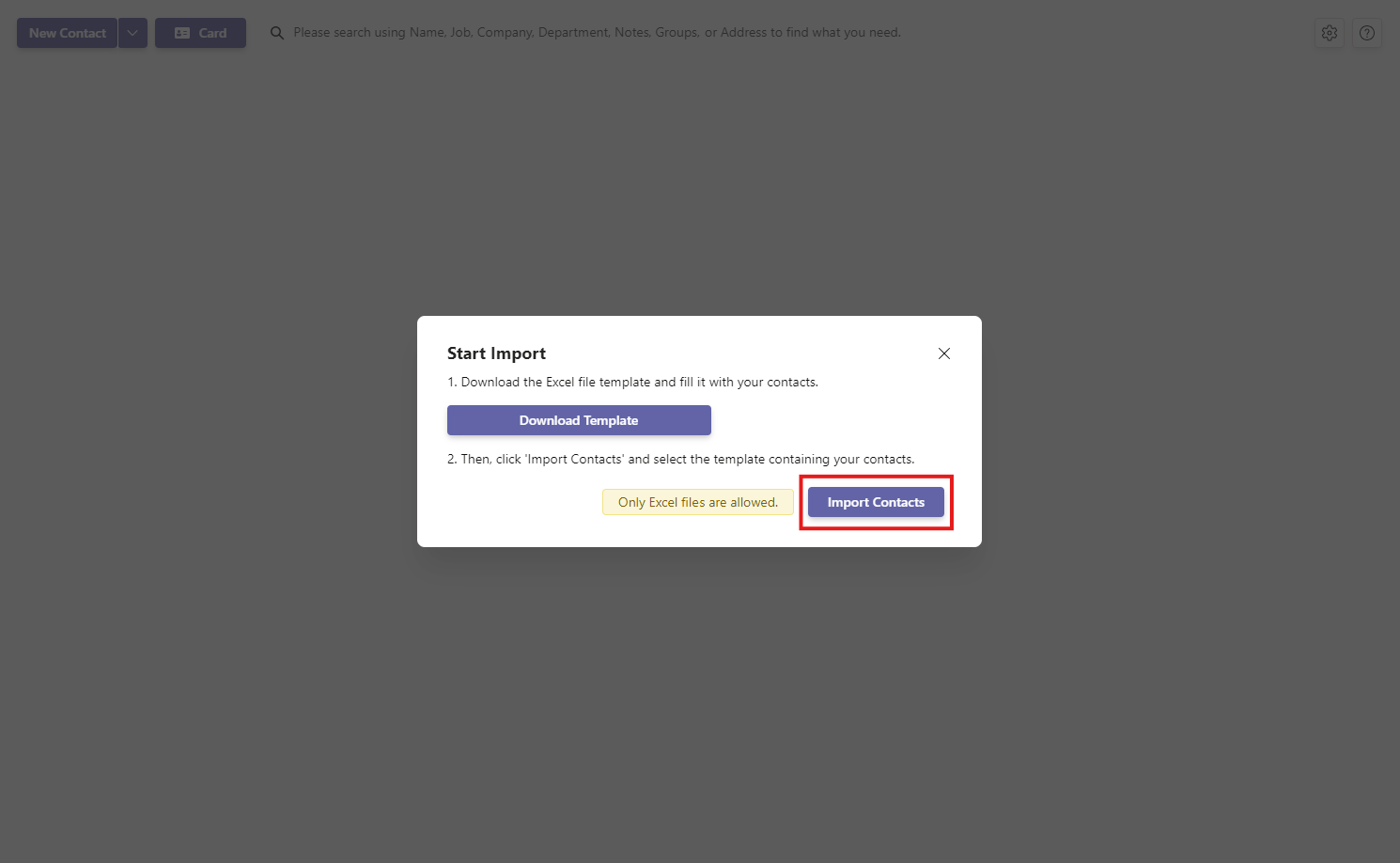
Click Download Template to get the Excel template. It is designed for compatibility with Contacts Pro.
- 2
Open the template and enter your contacts. Follow the format in the template to avoid import errors.
- 3
Return to Contacts Pro, click Import Contacts, and select your filled-in file. Only Excel files that end in .xlsx are allowed.
- 4
Wait for the import to finish. You receive an email confirming completion and how many contacts were imported successfully.
# Troubleshooting
# Format errors
If the import reports errors, make sure the data in your Excel file strictly follows the format in the template.
# Limit exceeded
If you go over the contact limit for your tier during the import, you receive an email, and only a portion of your contacts, up to the limit, is imported. For tier limits and upgrade options, see mixed tier usage in Contacts Pro or open the Admin Center.
# Related pages
- Back up or move contacts out with how to export contacts.
- Compare what each plan allows in mixed tier usage in Contacts Pro.
# Need help?
If you run into any issues or have questions during the import, contact our support team for assistance.