
# Manage Chat History
# Overview
The Manage Chat History page lists every conversation your agent has had, so administrators can browse, search, and review them. Each entry shows the user, the channel it came from, and when it happened.
AI desk Pro also checks each conversation automatically and flags the ones that likely need a closer look — for example, when the bot couldn't answer or gave an answer without a source. This helps you focus your time on the conversations that actually need attention, instead of reading through every single one.
# Actionable Options for Chat History
From the chat history, you can:
- View details: Open a conversation to read it in full and review the AI's responses.
- Delete: Remove a conversation you no longer need.
- Update status: Mark a conversation's triage status and add a note on how it was handled. See Triage Status and Resolution Notes below.
# Automatic Review Flags
Every conversation is checked automatically, and the ones that might need your attention are marked ⚑ Attention required. This is a helpful pointer, not a final judgment — always open the conversation and read it yourself before deciding what to do with it.
A conversation gets flagged when any of the following happens, from the first question onward:
- The bot gave a blank answer.
- The bot said it couldn't answer (for example "I don't know" or "I don't have access").
- The user gave a 👎 (thumbs down) on one of the bot's answers.
- The conversation ends on a question the bot never answered.
- The user had to ask the same thing more than once without getting an answer in between.
- The bot gave a long answer without pointing to any source.
If none of these happened, the conversation shows No signal detected. This just means nothing obviously went wrong — it doesn't guarantee the answer was actually helpful.
You'll see the flag both in the conversation list and when you open a conversation. As soon as you mark a conversation Reviewed (see below), the flag disappears — there's no need to keep flagging something you've already looked at.
# Triage Status and Resolution Notes
On top of the automatic flag, you can track your own review of a conversation with a status and a note — useful for keeping your team in sync on what's been handled and what hasn't.
To update a conversation's status:
Open a conversation, from the list or the reading panel.
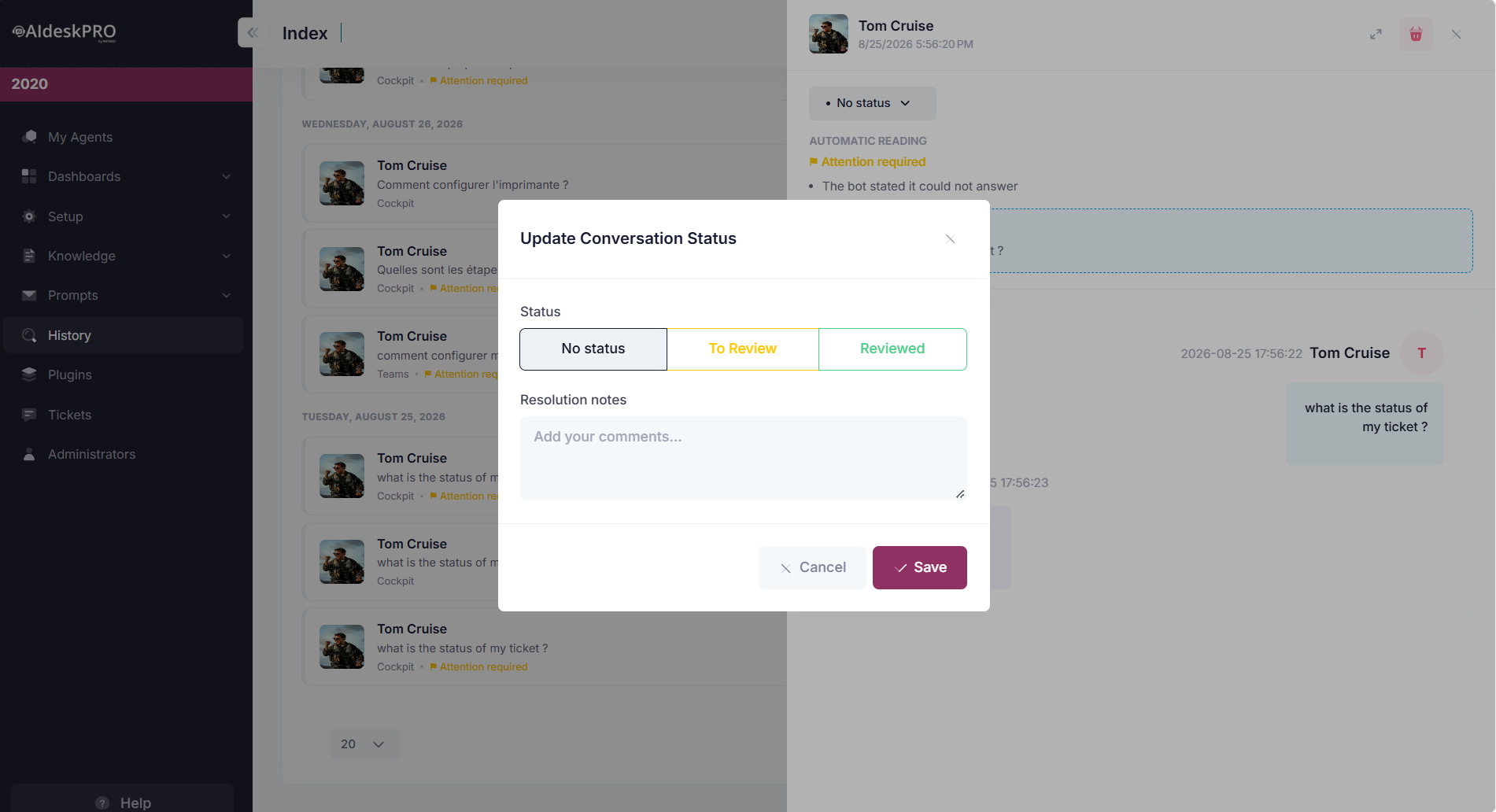
Click the status button (for example No status or To Review).
In the Update Conversation Status window, pick a status:
Status What it means No status Nobody has looked at this conversation yet. This is where every conversation starts, and you can also pick it to undo a status set by mistake. To Review Someone still needs to look at this conversation. Reviewed An administrator has looked at this conversation and handled it. Optionally, type a note in Resolution notes to explain what you did or found.
Click Save.
The status and your note both show up next to the conversation in the list and in the reading panel, so the rest of your team can see at a glance what's been done.
# Search and Filter the History
At the top of the history panel, you'll find four ways to narrow down the list:
- Keyword search: Type any word or phrase to find matching conversations.
- User search: Type a name to only see that person's conversations. This ignores case and accents.
- Channel filter: Show only conversations from one channel — All channels, Teams, Webchat, Cockpit, MCP, or Notebook. Each conversation also shows its channel in the list.
- Date picker: Show only conversations within a specific date range.
You can combine all of them — for example, to see only the Webchat conversations from one user in the last week.
# How Messages Are Displayed
When you open a conversation's details, each message is rendered according to its type instead of being shown as raw markdown:
- Plain text answers are displayed as formatted text.
- Adaptive Cards (for example, QnA answers or interactive responses) are rendered as the actual card the user saw.
- Dialog references (guided dialogs opened during the conversation) are shown as a dialog entry rather than raw content.
Internal reference tokens that the agent uses to track its sources are stripped from the displayed text, so the conversation reads the way the end user experienced it.
# Citation References
Below an answer that used your knowledge base, the Chat History shows the references the agent actually cited in that answer. Older behavior displayed the full pool of candidate documents retrieved during the search; the view now lists only the sources referenced in the response, matching what the end user saw in Teams or Webchat.
Each reference card shows:
- A badge indicating the source type: QnA, Document, or History (the agent's own conversation history).
- The source title and a snippet of the cited content.
- The Indexation date: the date the content was captured at indexing time. For SharePoint files this is the file's last-modified date, for local documents the upload date, and for QnA entries the last edit date.
- An Open link to jump to the source, where one is available.