
# How can I print Parking Pro reservation schedule?
Parking Pro lets you print a paper copy of the reservation schedule or export it as a PDF, straight from the Settings menu. The printout reflects whatever view you have open, so you control exactly which parking places and bookings appear on the page.
# Print the reservation schedule
- 1
Open Parking Pro and switch to the view you want to print.
- 2
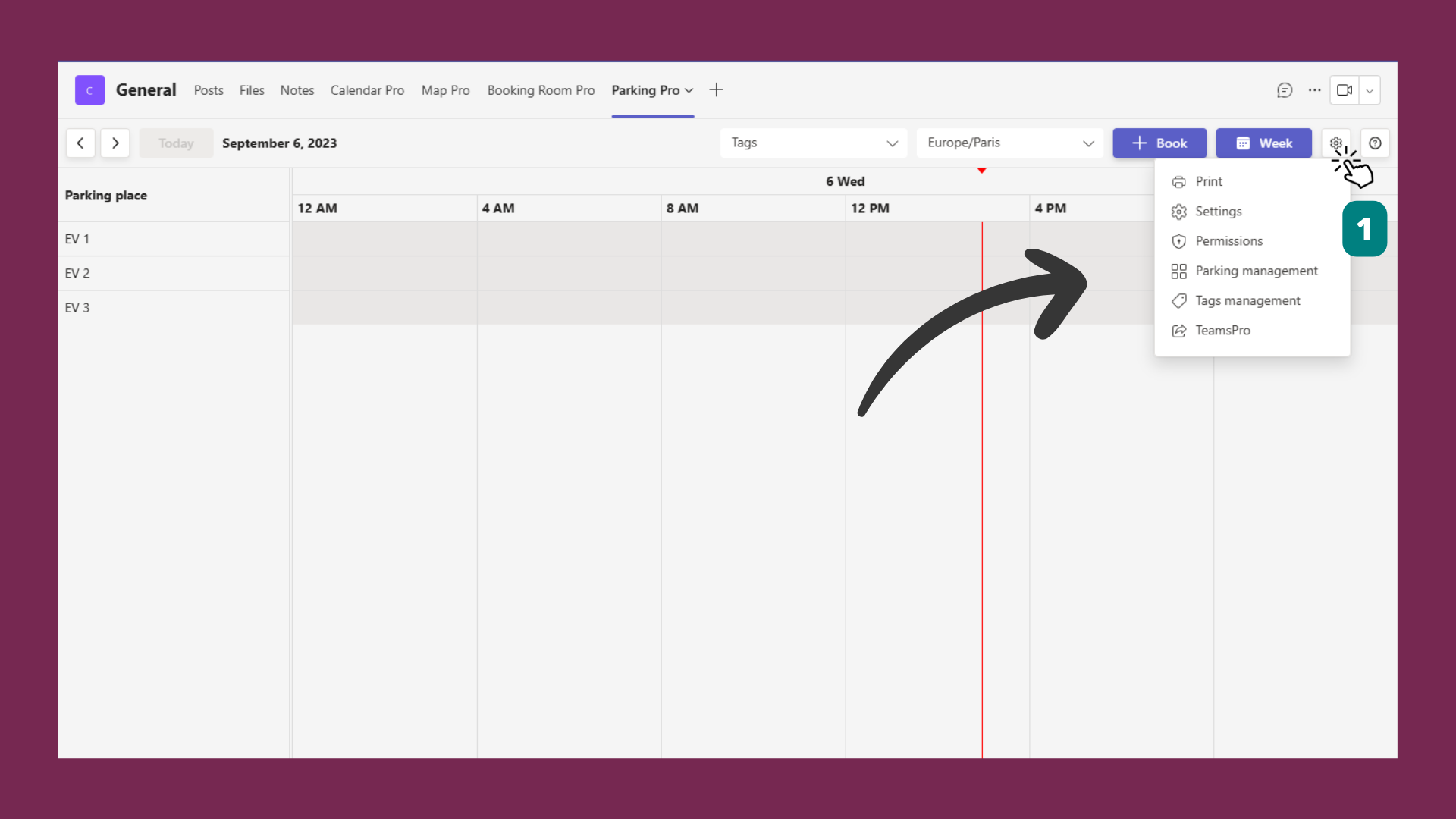
Click the Settings gear next to the Week button.
- 3
Select Print from the menu.
- 4
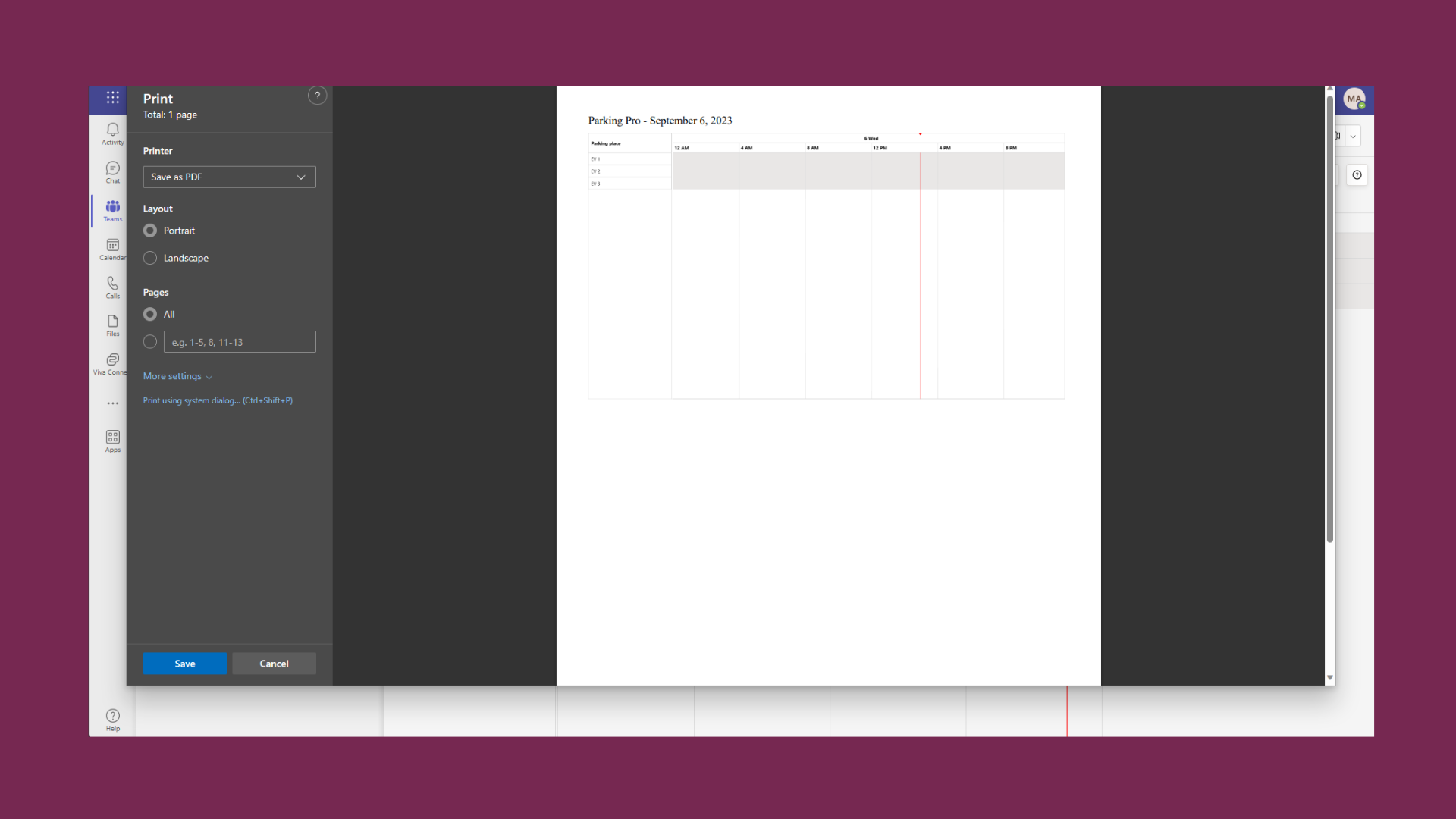
In the print dialog that opens, adjust the layout, then print the schedule or choose Save as PDF to export a file.
The printout reflects your current parking view, so pick the view you want before you start.
# I cannot see the Print option
If the Settings gear is hidden because Microsoft Teams is zoomed in past 100%, lower the zoom to bring the menu back.
- 1
In the top-right corner of Microsoft Teams, click the three dots next to your profile photo.
- 2
Find the Zoom control and reduce it to 100% or lower.
- 3
Return to Parking Pro. The Settings menu with the Print option is now visible.
# Related pages
- Set the Parking Pro time zone before you print so times print correctly.
- Organize places with tags in Parking Pro.
- New to the app? Start with the Parking Pro basic set up.